





10 Good Reasons to Add a Chatbot to Your Website in 2026
In 2026, not having a chatbot on your website often means leaving money on the table and…
Read more

Why this question comes up so often in small teams.
Managing a small team is a constant balancing act. You want everyone to know what they need to do without having to hold a daily meeting to remind them. You want to avoid oversights, duplicate work, and the "I was waiting for you to do that" moments that waste everyone's time. And above all, you want a tool that people actually use-not a Kanban board that gets opened twice a week.
It is in this context that Asana and ClickUp consistently come up in comparisons. Both are robust, well-established solutions with a large user base and an active community. But they take different approaches. One focuses on clarity and structure. The other on customization and maximizing the centralization of workflows.
The question, then, isn’t which one is “better” in absolute terms: that’s the wrong way to approach it. It’s better to ask yourself which tool best fits the way your team actually works, your constraints, your level of project management maturity, and your budget.
This article provides an honest overview of both platforms. Features, pricing, strengths, limitations, and real-world use cases: everything you need to make an informed decision, without any unnecessary jargon.
Please note: Asana and ClickUp are among the tools available on Freelance Stack, which means you can take advantage of special pricing on both platforms.
One last point before we get down to business: there’s no one-size-fits-all answer to this question. The best solution is the one your team will actually use, not the one that looks the best on paper. Keep that in mind as you read on.
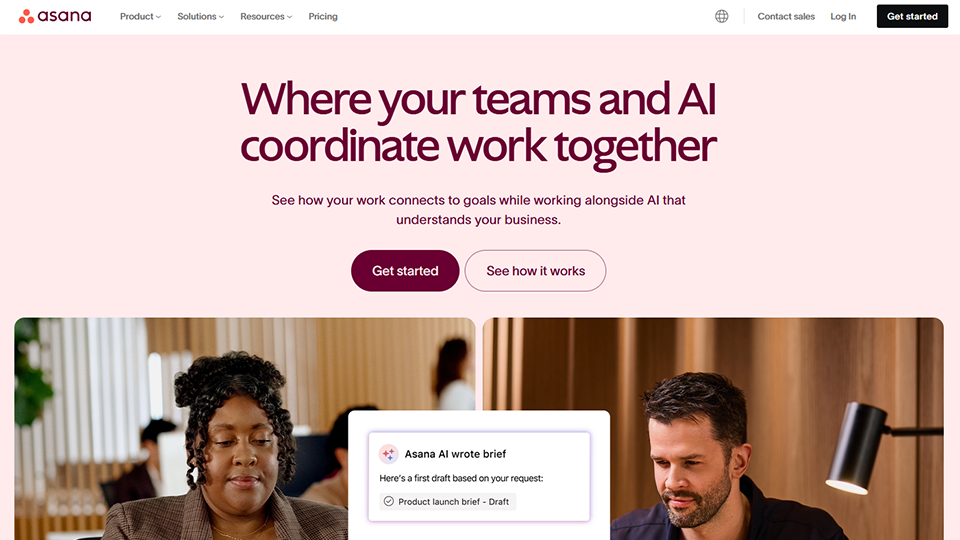
Asana was founded in 2008 by Dustin Moskovitz, a co-founder of Facebook, and Justin Rosenstein, a former Google engineer. The original idea was simple: to create a tool that would allow teams to focus on their work without getting bogged down in emails and follow-up meetings. More than fifteen years later, the platform boasts over 150,000 client organizations worldwide, including names like Airbnb, Spotify, and NASA.
Asana has been publicly traded since 2020 and has seen steady revenue growth, enabling it to invest heavily in the development of new features. In particular, the platform has ramped up its efforts in AI and automation over the past two years, without straying from its core mission: to be the most intuitive and accessible project management tool on the market.
What sets Asana apart is its firmly project- and task-oriented philosophy. The tool is built around a simple logic: each project contains sections, each section contains tasks, and each task can be assigned to a person, along with a due date, subtasks, attachments, and comments. This structure provides a framework, which is exactly what many teams are looking for.
Asana has also invested heavily in recent years in its automation, reporting, and team goal management features. It’s no longer just a task manager-it’s a work management platform designed to cover the entire project lifecycle.
The prices below are based on monthly billing. Discounts are generally available for annual contracts.
⚠️ Prices are subject to change. Please visit Asana's official website for current pricing.

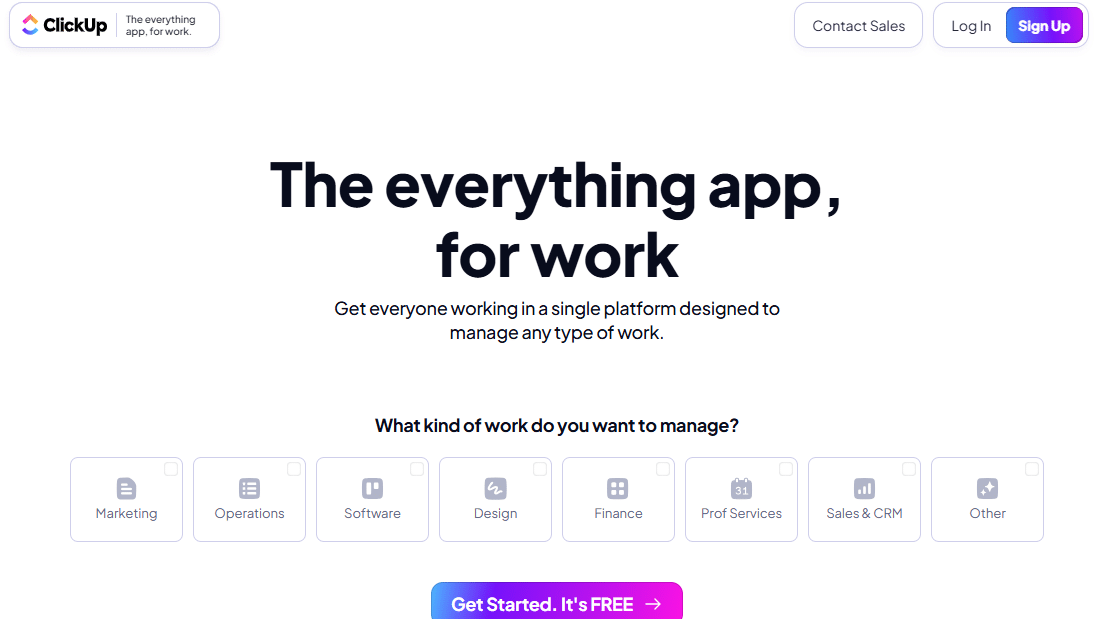

ClickUp entered the market in 2017 with a bold promise: to replace all other productivity tools. Founded in San Diego, the software has experienced rapid growth and now boasts over 10 million users worldwide. Its philosophy is to offer a platform flexible enough to adapt to any type of team, from small startups to departments within large corporations.
Where Asana prioritizes clarity through structure, ClickUp prioritizes power through customization. You don’t adapt to ClickUp-ClickUp adapts to you. This promise translates into an impressive array of features: tasks, docs, whiteboards, goals, dashboards, internal messaging, lightweight spreadsheets, sprint management, and, most recently, a built-in AI assistant.
The downside of this approach is a steeper learning curve. ClickUp isn’t the kind of tool you can open and master in twenty minutes. It requires some serious initial setup work to get the most out of it. But once you get past that hurdle, teams that commit to it stick with it.
ClickUp's prices are listed in U.S. dollars.
⚠️ ClickUp pricing is subject to change and may vary depending on current promotions or your region. Check the official website for current prices.
What sets Asana apart is its ability to naturally structure work without the team having to think about how to organize their projects. The model is consistent right from the start: project > sections > tasks > subtasks. It’s not as flexible as ClickUp, but it’s precisely this structured approach that reassures many teams.
For a small team of 3 to 10 people, the real challenge isn’t always about endlessly customizing every view. It’s often simpler than that: being able to see in 30 seconds what’s in progress, what’s behind schedule, and who’s working on what. Asana addresses this need very directly, without requiring any prior setup.
Asana's Timeline view, available starting with the Starter plan, is one of the features most appreciated by project managers. It displays all tasks in an interactive Gantt chart, allowing you to visualize dependencies, anticipate overlaps, and adjust schedules in real time.
For a small team managing projects with multiple milestones (product launch, campaign, redesign, audit, etc.), this view provides a level of clarity that 100% Kanban tools don't always offer.
Asana's automation rules let you create simple workflows without writing a single line of code. Here are some practical examples: automatically move a task to a "Pending Approval" section as soon as it's marked as complete, send a notification to the manager when a task is assigned to them, or automatically create recurring tasks based on a set schedule.
These automations aren't as advanced as ClickUp's, but they cover the most common needs and can be set up in just a few clicks.
Submission forms (available starting with the Starter plan) are particularly useful for teams that regularly receive requests from external collaborators, clients, or other departments. Once the form is submitted, a task is automatically created in the corresponding project, complete with all the necessary information. No more requests getting lost in a Slack chat thread.
Asana integrates natively with a wide range of popular tools: Slack, Google Drive, Microsoft 365, Zoom, Salesforce, HubSpot, Figma, and many others. For a small team that already uses several of these services, Asana fits seamlessly into their existing workflow.
Asana is particularly well-suited for marketing and creative teams that manage structured projects with defined milestones. It’s also widely used by agencies and consulting firms that need to invite clients or partners to specific projects without giving them access to the entire workspace. More broadly, any team looking to move from managing projects via email or Trello to a more robust solution will find Asana a natural step up.
With ClickUp, the approach is fundamentally different. The tool doesn’t impose a structure on you: it’s up to you to define your own organization, based on your processes, your work style, and your preferences. This freedom is its greatest strength-provided you’re willing to invest a little time in the initial setup.
ClickUp’s hierarchy (Spaces > Folders > Lists > Tasks > Subtasks) allows you to create a highly granular structure suited to a variety of scenarios: one space per client for a freelancer, one space per team for a startup, or one space per department for a growing small business. Each level can be configured independently with its own statuses, custom fields, and views.
This is one of the most frequently cited reasons for choosing ClickUp: the variety of views. In addition to the standard list, board, and calendar views, the tool offers a Gantt view, a Workload view, a Team view, a Mindmap view, a Spreadsheet view, a Form view, and even an Activity view. Each team member can work in the view that suits them best, without imposing their preferences on others.
For a small team with diverse skill sets (a developer who prefers lists, a designer who works better with visuals, and a manager who relies on Gantt charts), this flexibility means they don’t have to choose a single organizational approach that works for everyone.
One of ClickUp’s most distinctive features is its ability to centralize tasks that other teams spread across multiple tools. With built-in Docs, you can write meeting notes, knowledge bases, wikis, or technical documentation directly within the workspace, without having to open Notion or Confluence in a separate tab.
Whiteboards (collaborative whiteboards), on the other hand, allow teams to brainstorm visually, develop project architectures, or simply organize ideas before turning them into tasks. This feature is a great alternative to tools like Miro or FigJam for most common uses.
ClickUp offers over 100 triggers and actions for building automations. Starting with the Business plan, you get unlimited automations and can create fairly sophisticated workflows: automatically assign a task to someone based on its status, send an email or a Slack message at a specific stage of a project, update a priority based on an approaching deadline... All without writing a single line of code.
For teams that already use automation tools like Make or Zapier, ClickUp integrates natively with these platforms to take things even further.
ClickUp has integrated ClickUp Brain, an AI assistant, directly into the platform. It can generate task descriptions, summarize comment threads, create project plans from a brief, identify roadblocks, and draft automatic status updates. For teams looking to save time on low-value tasks, this feature is starting to prove its worth.
ClickUp’s customizable dashboards let you track the metrics that really matter: tasks completed by time period, workload per team member, overall sprint progress, time spent per project, and more. These dashboards are built using blocks, much like a simplified business intelligence tool. For a manager or founder overseeing multiple projects simultaneously, this provides significant visibility without having to export data to an external spreadsheet.
ClickUp is particularly popular among tech and product teams: developers, product managers, and teams using agile methodologies. Its features for managing sprints and backlogs, tracking bugs, and customizing statuses make it a viable alternative to Jira for small organizations that find that tool too rigid or too complex.
Freelancers who manage multiple clients at the same time will also find this an ideal way to stay organized, thanks to the "Spaces" feature, which allows them to clearly separate each client.
The previous sections have outlined the strengths and limitations of each tool. This table allows you to compare them side by side based on the criteria that matter most to a small team. Keep in mind that some of these factors are subjective and may vary depending on your team’s chosen setup and habits.
| Criterion | Asana | ClickUp |
|---|---|---|
| 🚀 Getting Started | Fast and intuitive | Steep learning curve |
| 🎨 Customization | Moderate | Very high |
| 💸 Admission fee (paid) | ~€13.49 per user per month | ~$10 per user per month |
| 🆓 Free plan | Up to 10 users | Unlimited users |
| 📊 Number of views | List, table, calendar, timeline | 15+ (Gantt chart, mind map, workload, spreadsheet...) |
| 🔁 Automations | Available starting with Starter | Highly advanced, unlimited in Business |
| 📝 Embedded documents | ✗ | ✅ |
| 🖼️ Whiteboards | ✗ | ✅ |
| 🤖 Built-in AI | Limited | ClickUp Brain (Advanced) |
| 💬 Internal messaging | ✗ | ✅ |
| 🔗 Third-party integrations | A great many | A great many |
| 📱 Mobile app | Excellent | More comprehensive but heavier |
| 👥 Perfect for | Creative teams, structured projects | Tech teams, versatile roles |
| ⭐ Key strength | Clarity and structure | Flexibility and centralization |
Before making your decision, it may be helpful to discuss these three simple questions with your team:
If your team is new to this type of tool or has been relying on email or spreadsheets for project management, Asana offers a more familiar and less intimidating environment. If you’re already used to working with sprints, backlogs, or custom workflows, you’ll get more out of ClickUp.
If the goal is to clarify who does what and reduce informal communication, Asana directly addresses this need. If the goal is to consolidate multiple tools into one and manage everything from a single platform, ClickUp is better suited for the task.
ClickUp requires a significant initial investment to be set up effectively. If your team is in the early stages or experiencing rapid growth, this investment should be taken into account. Asana, on the other hand, can be up and running in just a few hours.
The good news is that both platforms offer free plans. There’s nothing stopping you from trying both out with your team during weeks before committing.
Asana and ClickUp aren't aimed at the same users-here's how to figure out which one is right for you.
If your priority is to onboard a new hire in less than an hour, launch a project without spending three days setting up custom views and statuses, and keep the interface easy to understand for everyone, Asana is the natural choice. You don’t need to be a project management expert to start getting the most out of it right from the start.
Teams managing campaigns, editorial projects, redesigns, or launches appreciate Asana’s visual clarity and its ability to track projects with clear milestones. The Timeline view, in particular, is well-suited for this type of planning.
Clients, vendors, partners: Asana lets you invite guest collaborators to specific projects with limited, controlled access. This is a significant advantage for agencies and consultants who need to share a workspace without exposing their entire organization.
Asana is often the next logical step for teams that have outgrown Trello. The interface remains user-friendly, but the project management features are much more comprehensive: dependencies, Gantt charts, automations, and reports.
Sprints, backlogs, tickets, bug tracking: ClickUp natively supports the needs of product and development teams. Its flexibility makes it possible to implement agile methodologies without having to use multiple tools. For teams that find Jira too rigid or too expensive, ClickUp is a very serious alternative.
If your tasks are in one tool, your documents in Notion, your spreadsheets in Google Sheets, and your meetings in a separate tool, ClickUp can theoretically handle it all. That’s its stated positioning, and it delivers on it better than most of its competitors.
ClickUp’s hierarchical structure (Spaces > Folders > Lists) is particularly well-designed for organizing projects by client. Once the initial setup is complete, navigating between different projects becomes seamless and very intuitive.
When it comes to this criterion, ClickUp is hard to beat. The free plan is one of the most generous on the market, and the Unlimited plan at ~$10 per user per month unlocks features that other tools reserve for much more expensive plans. For small teams on a tight budget, this is a major selling point.
With over 15 different views available, ClickUp lets every team member work in the format that suits them best, without forcing a one-size-fits-all approach. This is a real asset for hybrid or cross-functional teams.
Before making a decision, here are the answers to the most common questions to help you make an informed choice.
ClickUp offers a native import feature from Asana, which makes migration much easier. The reverse process is more labor-intensive. In either case, it’s best to allow time for the team to adjust, regardless of which direction you choose. Even when well-prepared, migrating to a new project management tool takes a few weeks to get back up to speed.
Both tools were designed for distributed teams. Asana stands out for its visual clarity, which makes it easier to track progress asynchronously and provides a quick overview of project status. ClickUp goes a step further with its built-in messaging, collaborative documents, and whiteboards, which can reduce reliance on third-party communication tools like Slack.
Yes. Both Asana and ClickUp offer iOS and Android apps. The Asana app is generally considered smoother and more user-friendly on mobile devices. The ClickUp app is more feature-rich, but may run slower on some devices due to its more complex interface.
There are several options worth considering depending on your specific needs. Monday.com is particularly popular for its visual boards and ease of use. Notion is a good choice if you want to combine project management with a knowledge base. Linear is often cited by tech teams for its speed and high-quality user experience. Basecamp remains a go-to choice for teams that prioritize absolute simplicity and fixed-price plans. Airtable is a good fit for teams looking for a hybrid solution combining a database and project management.
ClickUp's Free Forever plan is genuine and generous, but it does have some significant limitations: only 100 MB of storage, 100 automations per month, and certain advanced views or features are unavailable. For light use or a trial period, it's perfectly viable. For intensive professional use involving multiple people, upgrading to a paid plan becomes necessary fairly quickly.
Asana's free plan covers the basic needs of teams of up to 10 people. If you need advanced features such as the Timeline view, automations, or intake forms, the Starter plan-at around €13.49 per user per month-is a reasonable investment, provided that the tool is actually used on a daily basis by all team members.
Both integrate natively with Slack, Google Drive, Microsoft 365, Zoom, and dozens of other apps. ClickUp offers a slightly larger number of native integrations, but Asana makes up for this with the quality and reliability of its connections, as well as a robust API for teams that want to build custom integrations.
ClickUp Brain is the more advanced AI feature of the two platforms. It can summarize comment threads, generate task descriptions, draft automatic status updates, or identify roadblocks in a project. Asana has also integrated AI features, but they are less advanced at this stage. If integrating AI into your project management workflow is a priority, ClickUp clearly has the edge.